

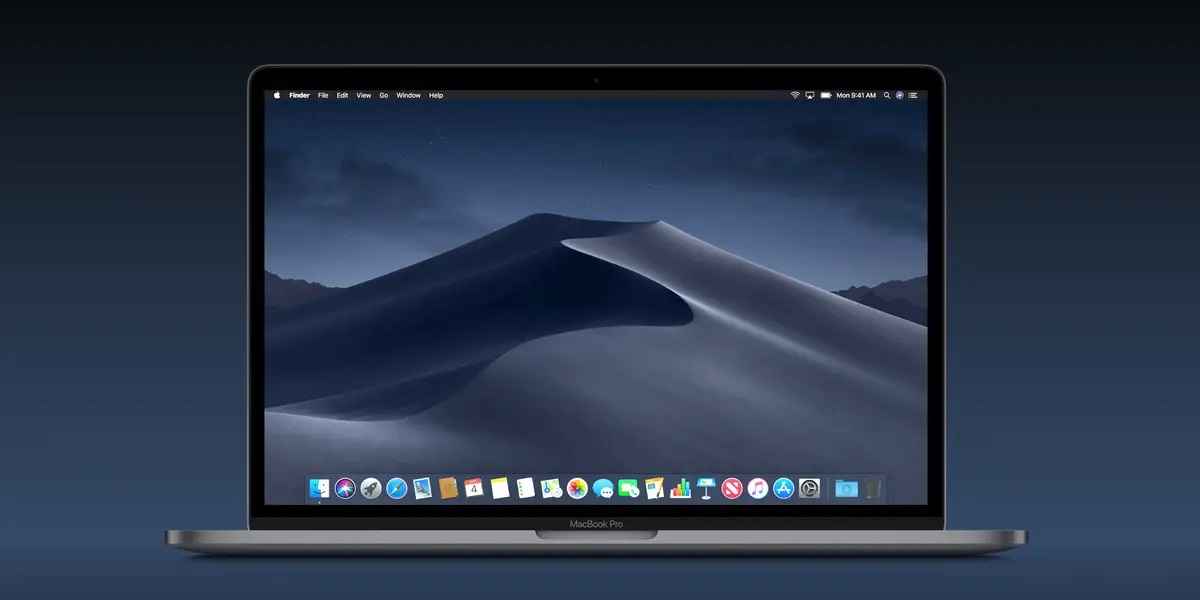

The dark mode is a charismatic new look introduced from Mac OS X 10.10 Yosemite, that helps you to be more focused on your work.
The dark mode is an eye-soothing dark color scheme that makes the contents prominent. Dark mode enables to be more darkening of the windows and controls and also merges them with the background.
This system feature reduces Mac power usage. Besides, enabling a dark theme on your Mac also darkens the Apps system-wide. Moreover, in this article, the ways of making dark mode on your MAC will be discussed briefly.
How to Apply Dark Mode on your Mac/MacBook & How to Turn It Off?
There are several ways to enable dark mode on Mac/ MacBook and also can be applied for various MacBook versions such as MacBook Pro, Mac mini, iMac, etc.
We will discuss the three ways by which you can enable the dark mode on your Mac computer:
You can enable Mac Dark Mode in system preference:
It is the most popular way to turn on the dark mode on your Mac/MacBook.
- Step 1: Click on the Apple menu then click on the system preference
- Step 2: Then select General
- Step 3: After that choose Dark in the Appearance Tab.
You can enable Mac Dark Mode through Siri:
It is the quickest way to enable dark mode on your Mac/ MacBook.
- Step 1: Click on Siri which appears on the top Apple menu bar.
- Step 2: say turn on dark mode to Siri.
You can set dark Mode in Control Centre on Mac:
The Control center contains the dark mode settings and also facilitates you to make dark mode on your Mac quickly.
- Step 1: You have to click on the control center icon present in the top right corner of your Mac screen.
- Step 2: Select the display button.
- Step 3: then click on the dark mode to enable it.
How to Turn It Off:
This is very easy to turn off the dark mode on your Mac/ MacBook. You can go to system preference> select General> Select Light that is present in the Appearance Tab to turn off the dark mode.
Otherwise, you can also tell Siri to disable the Dark Mode on your Mac.
Another way to turn off the dark mode is by using the control center present at the top Apple menu bar. Then click Display> Dark mode to disable it.
How do Switch between Light and Dark Modes on Mac?
Anyone who uses Mac is familiar with the light mode. It is the default appearance feature of Mac including all apps, windows, etc. dark mode was introduced later and is also popular among people who do a lot of work at night. You can change the appearance of the Mac by the system preference. To apply this, you have to follow these steps:
- Open system preference and then click on General.
- Now, select Auto in the Appearance section.
After applying this, now your Mac will switch to light mode after sunrise, while after sunset it will automatically start using Dark mode. Now you will appreciate this setting feature since it allows you to switch between the two modes without having to do anything.
How to Set Up Dynamic Desktop on your Mac:
Apple is going to add more Dynamic Desktop to Mac. Along with many other changes you can make new wallpapers for your desktop pictures on Mac. You can also choose from other photographs or wallpapers.
To change the Desktop picture on your Mac you have to follow the below steps:
- Click on the Apple menu present at the top of your Mac screen.
- Then choose system preference> desktop & screen saver
- Now Click on Desktop
Appling these steps the dynamic desktop pictures will automatically change throughout the day based on the location of your Mac computer. If Location services are disabled, the pictures will automatically change according to your Date & time preference. At noon, the lighting in the wallpaper will be at its peak brightness whereas, at night, the lighting will turn to a darker blue to feel you nighttime.
What Apps Are Affected?
Some apps have special Dark Mode behavior on Mac/ MacBook:
- Mail: If the Dark mode is turned on, to use a light background for your email messages you can open Mail> Preferences. Then you click on the viewing Tab and deselect “use dark backgrounds for messages”.
- Safari: when you enable the Dark mode on your Mac, Safari will automatically show a website in Dark mode but the website must be designed to support the Dark mode. Otherwise, you can use Safari Reader to read content in dark mode.
- Notes: If you want to lighten the appearance in the Dark mode then you can open Notes> Preference. Now deselect “Use Dark background for Note Contents”.
- Maps: If you want to make a lighter appearance for Maps while your Dark mode is enabled, then you can open Maps> Preferences. Now click on “Always use light map appearance”.
Wrap Up:
In Mac/ MacBook, the light and dark mode both have their significant purposes. The light mode gives an excellent appearance in bright conditions especially when you are outdoors. While Dark mode is perfect enough for you at night without causing strain to your eyes.
So, it will be the best trick for you to change the mode and set the process automatically. After enabling you should also try the new stacked features, Dynamic Desktop, and the refreshed screenshot utility.