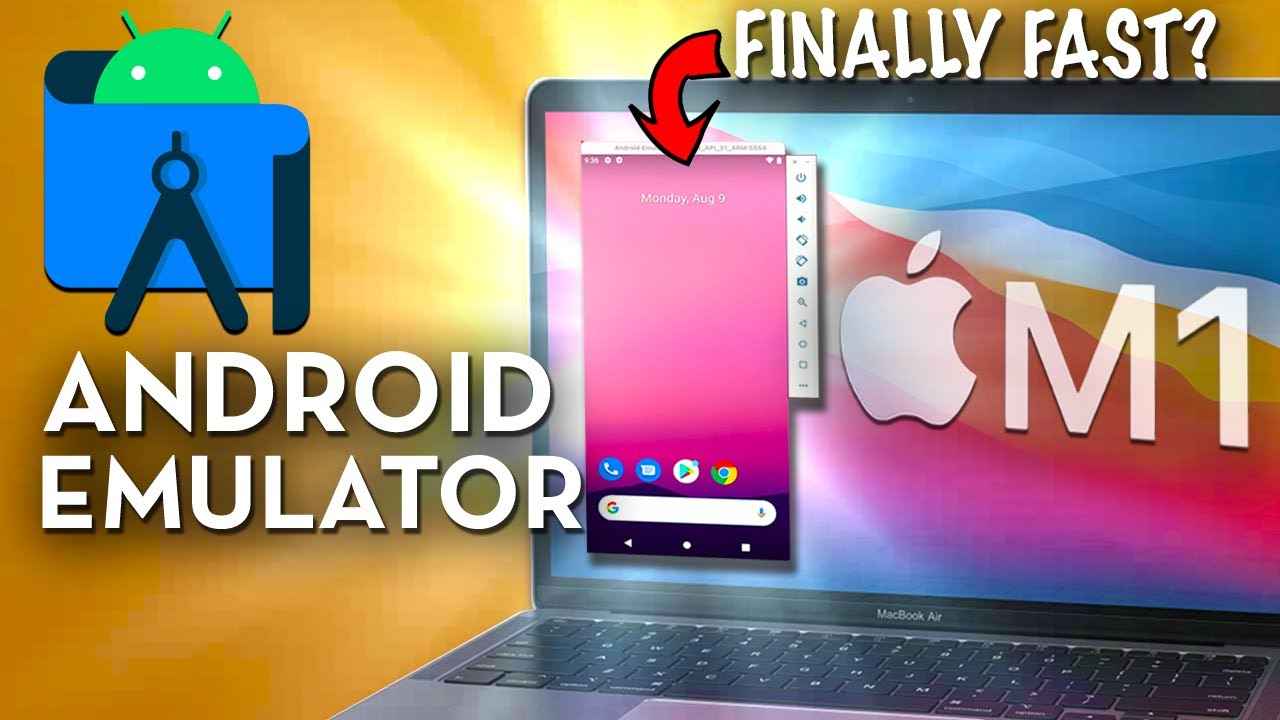
It is essential to test the compatibility and performance of mobile and web applications across devices and different screen resolutions.
It can be very expensive and operationally impossible to purchase multiple physical devices. For Mac users who do not have an Android device, an Android emulator becomes quite necessary to have access to Android apps.
Such emulators would provide a virtual Android environment on your Mac, thus guiding and helping you run Android applications smoothly and check their functionality.
The article will further explain how and why to use Android emulators on Mac, including the benefits and tools that help in testing applications more efficiently.
Understanding Android Emulators for Mac
An Android emulator for Mac allows you to create a virtual Android environment on your macOS.
This simulation replicates both the hardware and software features of an Android device, enabling you to run Android apps as if they were on a real device. It provides consistent performance across various Android versions and devices.
These emulators are tools primarily for QA engineers and software developers. They can simulate several device configurations, screen sizes, and Android versions, which helps in finding and fixing possible compatibility issues at the beginning of the development process.
This would present various scenarios for a QA engineer to test the app and ensure the application works well under these conditions.
This seamless integration ensures that Android applications perform well, providing a robust and versatile solution for all your app testing and usage needs.
Key Advantages of Android Emulators for Mac
Running Android emulators on a Mac provides many advantages for developers and testers. These tools simulate an Android environment on your macOS, eliminating the need for physical devices.
Some advantages of using Android emulators for Mac:
- Cost-effective: Emulators help to remove the need for purchasing multiple real devices, which can be costly. Instead, you can test your applications on various virtual devices for free or at a low cost.
- Convenient and time-saving: Switching between different physical devices is a difficult task. Emulators offer a smooth experience, allowing you to quickly switch between different devices.
- Comprehensive testing: Emulators can simulate various network situations, battery levels, and GPS locations. This facilitates thorough testing of applications in various scenarios.
- Customization options: Emulators on Mac help you to customize device specifications such as screen size, resolution, RAM, and storage. This helps you test your app under different conditions and optimize it for different device types.
- Automated testing: Emulators for Mac can be integrated with automated testing frameworks, helping you run automated tests efficiently. This makes the testing process faster.
- Safe environment: Using an emulator on your Mac provides a safe environment for testing, as it isolates the testing process from your device. This is useful when testing apps that require sensitive data or permissions.
- Remote testing: Many emulators support cloud-based solutions, enabling remote testing from your Mac. This allows teams to collaborate and test apps from different locations without the need to physically share devices.
- Debugging tools: Emulators on Mac often come with built-in debugging tools that help identify and resolve issues quickly. These tools provide detailed logs, breakpoints, and other features that make debugging easier.
Key Uses of Android Emulators for Mac
They are helpful to developers, QA engineers, and general users. Android emulators for Mac provide a great range of functions by creating an Android environment in macOS, allowing the running of Android apps, and simulating various device situations without any hardware devices.
Here are some of their major uses in detail:
App development and testing
The emulator is used for the development, testing, and debugging phases of Android applications by developers. It allows them to test the working of their apps across different Android versions and devices without having to physically maintain several devices.
This testing approach ensures that the software is compatible with a wide number of devices, reducing post-release issues.
Quality Assurance (QA)
QA teams use these emulators to simulate various conditions and detect bugs or performance issues. Emulators enable engineers to test how an app performs under various scenarios by simulating multiple device setups, screen sizes, and Android versions.
This extensive testing ensures that the program functions well across multiple devices before it reaches the final users. Engineers, for example, can test how the app responds to low battery situations, varying network speeds, or specific user activities, providing an efficient and user-friendly experience.
Access to mobile apps on the desktop
General users can reap significant benefits from utilizing Android emulators to run their favourite Android apps and games on their Mac. This is especially beneficial to individuals who prefer the larger screen and more powerful hardware of a desktop or laptop.
Emulators give an enhanced user experience that mobile devices may not deliver, such as playing mobile games with improved graphics and performance or utilizing productivity apps with the ease of a full-sized keyboard and mouse.
Security testing with Android emulators on Mac
Android emulators are extremely useful tools for security testers looking to find flaws and potential attacks in Android applications. Emulators allow testers to extensively investigate the app’s security without compromising real devices.
This controlled environment enables a deep investigation of the app’s behaviour under various settings, which aids in the discovery of flaws that hostile actors could exploit. Conducting vulnerability tests on emulators improves the app’s security and robustness, making it more resistant to possible attackers.
Tips for Efficient Testing With Android Emulators on Mac
Testing Android apps on a Mac can be made more efficient with the right strategies and tools. By utilizing robust emulators, effective virtualization software, and versatile cross-platform testing services, developers can achieve thorough testing and optimal performance for their applications.
Here are some tips to help you achieve efficient testing:
Choose the Right Emulator
Various Android emulators for Macs are available to make your testing process easy. However, the main challenge is to choose among them the best Android emulator for Mac that will make your work easy and reliable.
Some Android emulators for Mac that you can consider for better efficiency:
LambdaTest
LambdaTest is an AI-driven testing platform that supports over 3000 browsers, versions, and operating systems, making it an excellent choice for Android emulator app testing. For Mac users, LambdaTest offers a range of exciting features, allowing you to simulate and test Android web and native applications seamlessly on your Mac.
Using the LambdaTest Android emulator, you can confirm that your Android apps work properly on a variety of devices, including popular models like the Samsung Galaxy and Google Pixel, as well as different Android versions.
You can also perform Android automation at scale across real Android devices.
Android Studio
Android Studio is a popular integrated development environment (IDE) that also includes Android emulators for Mac, enabling developers to test Android apps on the Mac. The emulator provides almost all the capabilities of a real Android device. You can simulate incoming calls and messages, specify the device location, simulate different network speeds, and even access the Google Play Store.
Genymotion
Genymotion allows you to speed up Android app testing on your PC and provide live demos to clients. It creates a safe virtual environment for testing software applications.
You can run real-world scenarios, such as a GPS location simulation. Genymotion supports several Android versions and virtual devices. This means you can easily scale your testing efforts and access powerful resources without needing to manage physical devices.
BlueStacks 3
BlueStacks, developed by now.gg, inc., is a popular Android emulator for Mac. It has a user-friendly interface makes it easy to use and supports running almost all Android apps smoothly.
It is primarily built for gamers and provides outstanding performance and accurate game control utilizing a keyboard and mouse.
Use Snapshots
Snapshots save the current state of your emulator, allowing you to return to work quickly without having to reset or restart your app. This capability is extremely beneficial when testing specific scenarios multiple times. Saving snapshots allows you to:
- Quickly switch between testing scenarios.
- Save time by avoiding repetitive setup procedures.
- Maintain uniformity within your testing environment.
Network Testing
Use the emulator to simulate different network conditions, such as slow internet or no connectivity, to see how your app handles these scenarios. This helps ensure your app performs well under various network conditions, providing a smooth user experience.
- Simulate slow internet speeds: Test slow internet speeds to uncover performance bottlenecks and improve the user experience.
- Without connectivity: Test offline situations to guarantee smooth operation and acceptable user feedback.
- Variable conditions: Test and simulate fluctuating connectivity to ensure app stability and functioning.
Regularly Clean and Maintain
- Clear cache and data: To avoid slowdowns and ensure peak performance, periodically clean the emulator’s cache and data.
- Backup and restore: Make regular backups of your emulator settings so that you can quickly restore your environment if necessary.
Monitor Performance
To avoid system overload, monitor your Mac’s resource utilization regularly when using the emulator. This helps in detecting any resource-intensive processes that may be impairing the emulator’s performance. If you are experiencing performance issues, try changing the emulator settings or resource allocation to improve efficiency.
Here are a few tips:
- Allocate extra RAM: Allocate extra RAM to the emulator if your Mac has enough memory. This can improve the emulator’s responsiveness and performance.
- Enable hardware acceleration: Make sure that hardware acceleration is enabled in the emulator’s settings. This uses your Mac’s GPU to increase performance.
- Optimize emulator configuration: Select the device profile and system image that best meets your testing requirements without overloading your system.
Conclusion
Android emulators for Mac are essential tools for developers, quality assurance engineers, and end users. They provide a cost-effective and convenient solution to test and run Android applications without requiring many physical devices. Emulators allow for extensive testing of app compatibility and performance across several Android versions and devices by generating a virtual Android environment on macOS.
Emulators help developers debug and optimize their code more efficiently. QA teams can replicate various situations to verify that the software runs smoothly. A larger screen allows general consumers to view mobile apps more easily. Overall, emulators simplify the development process and ensure that applications perform properly under a variety of scenarios, making them indispensable for robust and high-quality app development and testing.