
Is your Linktree not working on Instagram?
Linktree is a popular service that lets us create a landing page with links to our social profiles, websites, online stores, or anything we want to display to our audience. Linktree offers a centralized platform to share links rather than cluttering your Instagram bio.
However, many users have recently complained about Linktree not working on the Instagram issue, so there may be various reasons. If you are also facing this issue, and looking for a solution then you are on the right path.
Here, in this article, I am going to wrap together why Linktree is not working on Instagram, and how to fix Linktree not working on Instagram.
Let’s dive into the deep!
Why is Linktree Not Working On Instagram?
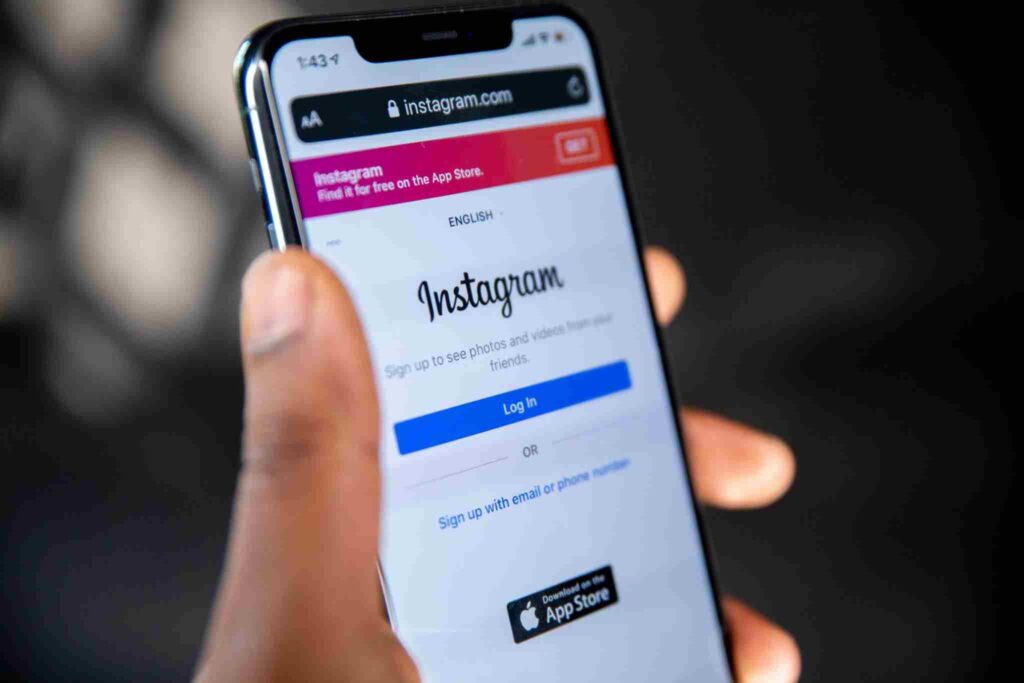
There may be several reasons why is your Linktree not working on Instagram, including:
Instagram Blocks links to Linktree
Nowadays, Instagram has been blocking the links redirecting to Linktree including similar landing page services. This is an attempt by Instagram to retain users within their app rather than redirecting them elsewhere.
So, if you click a Linktree link on Instagram, it will not work or take you anywhere. Instagram does not allow that redirect.
Linktree Link Format Change
Sometimes back, Instagram has changed the structure of their profile URLs. So, still, if you have not updated your Linktree link on Instagram, the previous format will not work anymore.
For example, the old format URL was just a username. linker. ee, on the other hand, the new format is linked. ee/username. This may cause broken links on Instagram.
Server Outage or Glitch
Similar to any web page, li9nktree also suffers from downtimes and glitches sometimes. A temporary glitch or server issue can lead to your Linktree not working properly on Instagram.
Profile AVisibility settings
If your Linktree profile is not set to public visibility, people can’t access it if you share that link on Instagram. So, you need to double-check your Linktree setting.
Banned Linktree Account
In rare cases, Linktree may ban some accounts that violate their terms and conditions. So, if your Linktree account is banned, any links you have shared on it will automatically stop working.
How To Fix Linktree not Working On Instagram
Now you are aware of the causes of why your Linktree is not working on Instagram, and make it work again on Instagram. Just follow these below tips to fix the issue:
1. Use a Link Shortener
The easiest method is to use a separate link shortener. You can use bit.ly to create a shortened redirect link to your Linktree profile.
For example, if your Linktree link is:
https://linktr.ee/yourusername
Then you can shorten it on bit.ly as follows:
https://bit.ly/3abcd12
Instead of using the direct Linktree URL, you can use the shortened link in your Instagram bio.
Bit.ly and other popular shorteners are less likely to be blocked by Instagram.
2. Use New Linktree Link Format
I have already mentioned that Linktree now uses a different URL structure.
https://linktre.ee/yourusername
Instead of the old format:
https://yourusername.linktr.ee
So, you need to change the old link in your Instagram bio to the new URL format. This may fix any broken links.
3. Update Linktree Username
You can check whether your Linktree username has changed recently. Also, you need to check if you have set up a new account. You need to update the username in the Linktree Link you have added to the Instagram bio.
The right format is:
https://linktr.ee/YOURUSERNAME
So, with the right format of the Linktree username, your Linktree link will start working again.
4. Make Linktree Profile Public
You can check your Linktree account settings and make sure whether the profile visibility is set to public. If you find that it is restricted or private, people can not access it.
Any user must be able to access your Linktree link, so you need to set the profile visibility to public.
5. Check Linktree Status
Linktree faces occasional downtimes and glitches. If that happens, all links will be broken.
- First, open all Linktree links directly in a browser to test whether the page is loading up properly. If it doesn’t load, then Linktree itself may likely be down.
- You can also check the [@Linktree_Status](https://twitter.com/Linktree_Status) Twitter Handle. Here, you can find any updates any Linktree Outages.
- Once Linktree is back up, your Linktree links will automatically start working on Instagram.
6. Switch To Alternative landing pages
If Instagram continues to block your Linktree links, you can check out the following alternative landing pages.
Some popular options include:
- Taplink
- Card.co
- Campsite.bio
- Shorby.com
- Milkshake.app
7. Contact Linktree Support
There may be an accidental ban and unresolved technical issue, so you may be required to directly contact Linktree support. You can discuss why your Linktree not working on Instagram with them. Their technical support team can look into this matter and resolve any issue to restore your account.
8. Share One Link at a Time
If none of these above fixes have worked, or your Linktree is banned, the last option is to avoid Linktree altogether. You can manually share the links one at a time on your Instagram bio. You need to keep changing the links every few days. Thus, you can share new content.
FAQ
How can I activate Linktree on Instagram?
Ans: Adding your linktree URL to your Instagram bio is easier. You only need to add your Linktree URL in the website field when you edit your Instagram profile. Thus, you ensure that your Linktree link will be clickable on your Instagram bio.
Is Linktree blocked on Instagram?
Ans: No, Linktree is not blocked on Instagram.
Is Linktree approved by Instagram?
Ans: All social platforms approve the Linktree. Linktree is the original, and the most popular link-in-bio tool. Moreover, the linker.ee URL is a much trusted, identifiable, and comfortable link that audiences feel safe and protected on clicking on.
Do Linktree Expires?
Ans: Linktree URLs do not expire, so you can continuously use the same URL for a long time. You can easily modify the content, links, functionality, and appearance of your Linktree whenever required.
Conclusion
Linktree not working properly On Instagram can be frustrating sometimes, but you can fix this issue in various cases. Here, I have discussed the most likely causes of this problem. Also, I have provided all the relevant techniques to fix this issue.
With the right technique, you can get your Linktree back up and running on Instagram again. so, just try every tip that I have wrapped together above and conveniently share multiple links in your Instagram bio.