If you are facing an issue with the Spectrum TV app not working on Roku then do not worry because I am here to fix your problem.
You might be trying to open the Spectrum TV app on your Roku but it is not launching, or while you open the app it crashes back to the home screen.
In some cases, you may see the error code range-1001, “App Unavailable on Roku”, or any other error code.
Here, in this article, I am going to wrap together common issues of the Spectrum TV app not working on Roku, and how to fix the Spectrum TV app not working on Roku.
So, just stay with me till the end of the article!
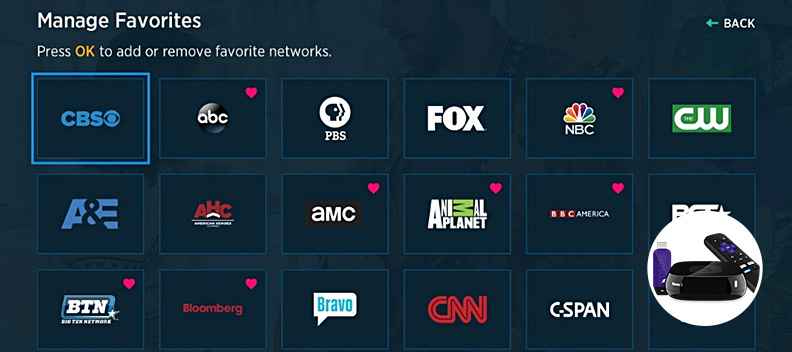
Common issues Of the Spectrum TV App Not Working
The Spectrum TV app is one of the most popular streaming services in the globe. This app allows you to watch Live TV and on-demand content without spending lots of money. You can also search for your favorite content, schedule your recordings, and much more.
However, there are times when the app refuses to work. There are various reasons why the Spectrum TV app is not working on Roku, including:
- There may be a glitch or a bug in the Spectrum TV on Roku.
- your device may not be compatible with the Spectrum TV app on Roku
- you have not updated the Spectrum TV app in a long while
- Your Wifi or internet is not working properly
How To Fix The Spectrum TV App Not Working On Roku
If your Spectrum TV app is not working on Roku then you can fix it by following these ways, including:
1. Power Cycle Modem & router
One of the major reasons why your Spectrum TV is not working may be because of a slow internet connection. It can also be responsible for lag on Roku TV or sound and video delay. Sometimes, your router may show excellent signal strength. but still, a channel or more may not work on your Roku device.
In such cases, you need to simply power cycle the modem and the router will fix the issue immediately. You need to follow the below steps to power cycle modem & router:
- unplug the router and modem and leave them unplugged for 30 seconds.
- Then, plug only the modem back first and wait for it to reset. it may take one or two minutes.
- Then plug the router into the power outlet and wait for it to get connected.
- after restarting both devices, they should synchronize.
- Once synced and connected, you need to be sure that your Roku device is connected to the network.
- Now, open the Spectrum app on your Roku device and again if it is working perfectly this time.
If this tip fixed the issue then good, otherwise go forward with the next step.
2. Power Cycle Your Device
Another way that you can fix the Spectrum app not working on Roku is to power cycle your device. To do so, you can follow the below steps:
- You need to turn off your Roku TV and unplug it from the power outlet.
- Then, you can hold down the power button for 15 to 20 seconds of your TV.
- After that, plug it back again. and turn it on.
This is known as a soft reset. While your Roku device is back on you can open the Spectrum app.
3. Update Spectrum Channel
Another common reason why your Spectrum TV app is failing to work may include having an outdated version of the channel/app on Roku. So, you need to check if there is any updated version available of the channel or the app, just go forward and update it.
To do that, you can follow these steps:
- Highlight the channel
- then, press the Options (*) button and check for an update.
- If you find there is any pending update, click on Update. once the app is updated, reboot the TV and open the app again. You must be up and running.
4. Do a System Restart
Another way that you can follow to fix the Spectrum TV app not working on Roku is to perform a system restart directly from the dashboard. To do so, you can follow the below steps:
- You need to go to settings via your Roku TV remote
- Next, go to System> System Restart> restart
Once, your TV is back on, you can try to access your Spectrum TV channels again and check if it works.
5. Remove and reinstall the Spectrum App
The presence of corrupt files can be another reason why the Spectrum app not working, also if you see Roku code rlp-999 then it is a proven way to fix it. In such a case, you can remove the Spectrum TV app and restart the Roku to clear its memory. Then you can reinstall the Spectrum TV app.
To do so, you can follow these steps:
For removing the Spectrum App
- Highlight the app
- Then, press the Options (*) button on the Roku remote
- Next, click on Remove
Restarting Roku Device
- Go to Settings
- Next, select System>System restart> restart
Reinstalling Spectrum app
- On the menu options, you can scroll down to streaming channels, and press OK.
- Then select Search Channels
- Find ‘Spectrum’ from the list
- Then, click Add Channel, and wait for it to be added
- Once, it has been added successfully, click on Go to Channel to open the Spectrum app on Roku. Now, hope, the app will start without any issues.
6. Clear Cache and Data In the Spectrum App On Roku TV
You can follow the following steps to clear cache and data in the Spectrum TV app, including:
- You can click on the menu icon of your device from the device’s home screen.
- You need to make a selection of options
- Now, you have to choose the apps
- From your app list, you need to choose the Spectrum TV app and select it.
- Then, you have to choose a storage option
- Next, click on the “clear data: option that you can find at the bottom of the screen. This will help to clean the data as well as the cache.
7. Log Out and Login Back On Spectrum TV App
Another effective way that you can get the Spectrum TV app working on Roku is by simply Signing out of the app and signing in again immediately. However, you can only follow this step if you are able to at least open the app.
Otherwise, if you can’t at least open the app or it won’t load at all then this tip will not work.
8. Update Roku OS
If you have done everything that I have mentioned above, then you can check for any pending Roku software updates. If you find there is any, just go forward with downloading it immediately.
To check and update your Roku software, you can follow these steps:
- You can click on the Home button on your Roku device remote.
- Then, Select Setting> System> System Update
- Then, click on Check Now for manually checking for any update
FAQ
Why won’t my Spectrum app work on Roku?
Ans: There may be several reasons why your Spectrum app is not working on Roku. These include your device is not compatible with Spectrum TV on the Roku app, your data is not working properly, there might be a bug in the Spectrum TV app on Roku, and more.
How Do I update the Spectrum TV app on Roku?
Ans: First, open the Spectrum TV app on Roku, and then go to Settings on your Roku and scroll down to upgrades.
How can I fix the issue of the Spectrum TV app not working on Roku?
Ans: There may be various reasons why your Spectrum TV app is not working on your Roku TV. You need to first understand the cause, and then you can easily solve your problem. However, first, you can unplug your Roku TV from the power outlet for at least 30 seconds. Then, you need to plug it back in and turn it on. Now, check whether the Spectrum TV app issue has been fixed. If not, you can clear the Spectrum app cache or reinstall the Spectrum app.
Conclusion
today’s era is the internet era. There are billions of data stored and cleaned, so there is nothing to worry about regarding why the Spectrum TV app not working on Roku.
There may be a technical error, or some issues can happen from your side. So, if there is an issue from the company side, it will be solved as early as possible.
If the error has been raised from your side, then you can follow the above-mentioned tips to resolve the issue. Hope, this guide will help you to solve the problem, otherwise you can contact Roku customer care service.