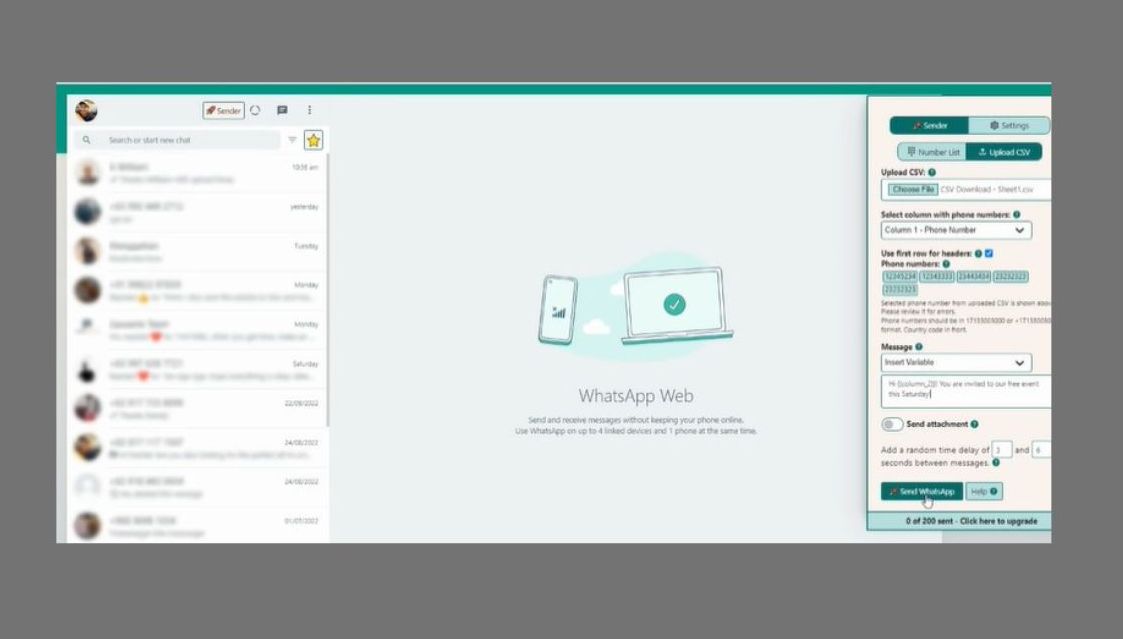
Nowadays, we cannot imagine our life without WhatsApp; it has become a popular messaging app all over the world. Do you know you can also send messages from Google Sheets using the WhatsApp API?
This can be very much effective for business owners to send mass WhatsApp messages to their clients.
In this article, we will discuss how you can use the WhatsApp API to send WhatsApp messages from Google Sheets.
How can you get API for the WhatsApp app?
The WhatsApp API is a platform that lets you create applications that initiate the popular messaging service.
With the API you can access all the features of WhatsApp, which also includes creating messages, sending messages, managing groups, making calls, etc.
The API also provides powerful tools for business owners to create customer support applications for a wider range of objectives and automated message systems.
There are three steps to get API for WhatsApp:
Step 1: buy a phone number: You need a phone number to build the setup for your WhatsApp API account. You must be ensuring that the phone number must not be connected to another WhatsApp business account.
Step 2: you must verify the business name and fulfill WhatsApp commerce policy: Before applying for WhatsApp API you must need to meet all the commerce policies of WhatsApp. WhatsApp will verify your name and your display name which must be matched with the legal name under which your business has been registered.
Step 3: Verify Facebook business and number: This step differs from the Facebook page verification. You need to submit a few documents and then you can complete Facebook business verification. This will take a few working days to complete the verification.
Step 4: Generating an API key: While you have a WhatsApp API account you need to own a WhatsApp API key and you need to connect it with a business software of your choice. There are different API providers available in the market, you can choose anyone of your choice.
Set Google sheet with Whatsapp API
The WhatsApp API allows you to send WhatsApp messages from a Google Sheet. Here are the steps to follow:
- Step 1: First, you have to make a new Google Sheet. You need to visit https://sheets.google.com and then click on the Create button.
- Step 2: then you need to create the WhatsApp API; to do so you need to visit https://www.whatsapp.com/business/api and then click on the Get started button.
- Step 3: While you have set up the WhatsApp API you can send messages using your Google Sheets. Go to your Google Sheets and click on the actions menu and select send messages.
- Step 4: to the “To” field you need to enter the phone number of the person to whom you want to send the message as well as to the “Message” field you need to write the letter. Then click on the send button.
- Step 5: Google Sheets will show you a confirmation message to let you know that the message has been sent. You can also click on the “Message” tab to view all the sent and received messages.
Send WhatsApp messages from Google sheet
Step 1: you have to add data to the spreadsheet:
You need to create a spreadsheet with column 1 where you can store the names of the contacts and column 2 for their respective WhatsApp numbers. You must remember to add the country code in front of the contact numbers.
Step 2: you need to create the WhatsApp messages to send from the Google Sheet:
You can add the message in the next column using this syntax: =“&A7&”. Here A7 is the cell that holds the name of the person to whom the WhatsApp message will be sent. The example of the final message will be like this:=“Hello“&A7&”Welcome”
Step 3: you have to create a WhatsApp message link:
You need to create another column for linking the messages to WhatsApp using the HYPERLINK feature.
=HYPERLINK(“https://api.whatsapp.com/send?phone=”&B5&”&text=”&C5, “Send”)
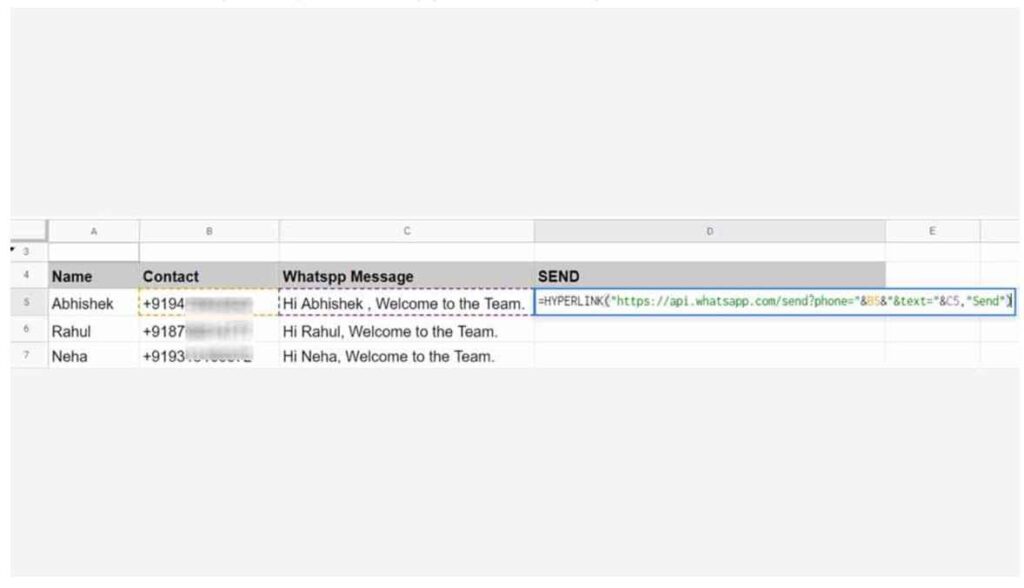
In this case, the above syntax will enable you to send the message that is present in cell C5 to the contact present in cell B5.
Step 4: Click on the send button:
Now, you just need to click on the send button that will be displayed in column D to send WhatsApp messages using Google Sheets. You can send multiple messages by clicking on the send link present in the Spreadsheet.
FAQ-
Is the WhatsApp API free to use?
Ans: the WhatsApp API is presently in beta and only available for businesses. But the business account must be verified. To send WhatsApp messages businesses should create a profile and then they must register their phone number with WhatsApp.
How is the WhatsApp API is useful to businesses?
Ans: Whatsapp API is very much helpful for businesses. Businesses can reach out to a huge mass with relatively little effort. Besides, it lets businesses automate their customer service functions. It also enables businesses to track the delivery of the message and know the status of their messages.
What are the rules for using the WhatsApp API?
Ans: WhatsApp has various guidelines for businesses that want to use WhatsApp API. The messages must be useful to the customers, must be relevant, and must be free of spam.
Conclusion:
WhatsApp and Google Sheets are both two significant platforms used in our daily life.
Send WhatsApp messages using Google Sheets is very useful for you if you have a target for a huge number of people to send the message. The messages need to be personalized before sending them to the recipients.