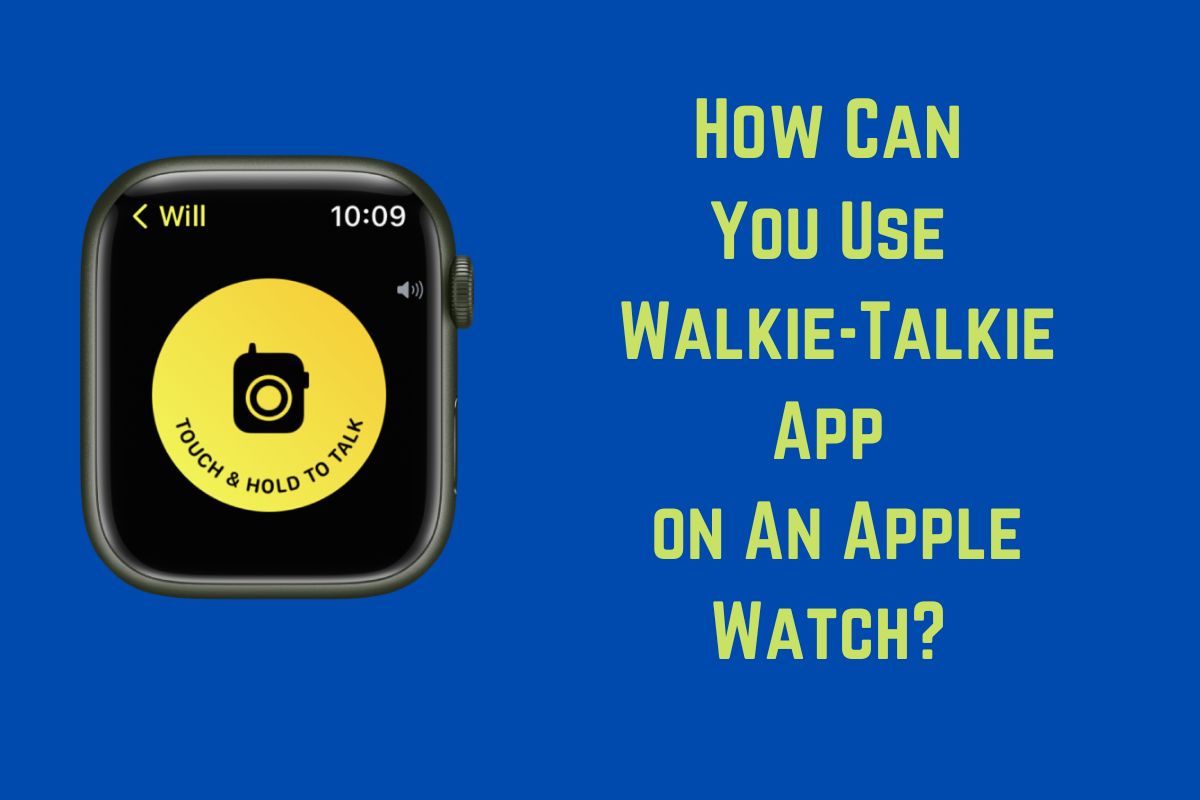
If you are out for shopping or want to search a friend in a crowd then you can use the walkie-talkie app to get in touch with the person.
The walkie-talkie is a medium by which people can be connected just by using the Apple watch. Walkie-talkie only requires that both the connecting people must be compatible with Bluetooth connection, Wi-Fi, or cellular.
If you want to be connected with people through a walkie-talkie the only thing you need is an apple watch. Even for the person to whom you want to be connected. The walkie-talkie app will let you start immediately a voice conversation with any person who owns an Apple watch. This app provides you to enjoy chatting across your home, and your country without worrying about picking up a call.
How to use Apple Watch’s Walkie-Talkie
To use the in-built walkie-talkie installed in your Apple watch you need at least one contact with iPhone running iOS. It will take a minimum of 1minute time. The steps are described below:
- Step 1: Tap the App and open it.
- Step 2: tap the Add friends option and your contact list will be popped up. Now you can send an invitation to any contact.
- Step 3: send an invitation to any of your contacts. You can see the contact appears with a grey color until your invitation is accepted. Whenever your invitation will be accepted the contact will appear in yellow and will be added to your contact list.
- Step 4: then select the contact that you want to message. The app will check the availability of the person and show a big yellow light and also says “touches and holds to talk”.
- Step 5: Now hold the button and record your message and send him.
How do you add a friend?
After setting up FaceTime on your iPhone you can see that your Walkie-Talkie app will appear on your Apple watch. There is a yellow icon that says Talk. These are the steps that should be followed to add a friend:
- Step 1: Open the Walkie-Talkie app on the Apple watch.
- Step 2: then tap add friends and select any contact.
- Step 3: You have to wait until to accept the invitation. Until your friend accepts your invitation their contact cards remain grey. After accepting the invitation the contact card will turn yellow and both of you can talk instantly.
How do you accept an invitation?
Commonly, you can also get an invitation from your friends or any other person. Here are a few steps to follow to accept the invitation:
- Step 1: You can touch and hold the face of the watch and swipe down to open the notification center.
- Step 2: Whenever you receive any notification from Walkie-talkie just tap it.
- Step 3: in the notification, tap always allow

How do you start a conversation?
Now you can start the conversation:
- Step 1: on Apple watch open the walkie-talkie app.
- Step 2: then tap the friend with whom you want to start your conversation.
- Step 3: You have to touch and hold the talk button, then start talking. Is the screen saying connecting? If so wait until Walkie-talkie is connected. After the walkie-talkie is connected your friend can hear you.
What do I do if I’m having trouble sending/receiving invitations?
In any case, if you are having trouble sending or receiving invitations then you can follow the below steps:
- Step 1: You can open the setting app on your iPhone; then tap FaceTime. Be sure that you have signed in with your Apple ID.
- Step 2: Restart your iPhone
- Step 3: Restart your Apple Watch
- Step 4: Now resend your invitation
If you are still facing this issue then you can contact Apple customer support.
FAQ-
How do I make myself unavailable or disable the Walkie-Talkie app?
Ans: To make yourself unavailable, you just need to touch and hold the bottom of the screen of your iPhone and open Control Center. Then find the walkie-talkie icon. If it shows a yellow color that means you are available.
If you want to be unavailable or disabled then tap it once and make it disabled. When you want to be available again then you have to tap the greyed icon again to re-enable it.
How can I delete a Friend from the Walkie-Talkie app?
Ans: if you no longer want someone to be in your friend list in the app, you have to search for their name in your friend list and swipe left of their name. Then a red X will be shown and you need to select the X to delete your friend from the list.
Later if you want to reinvite them you just need to contact them again through the app.
How do you remove a friend?
Ans: you can remove a friend either by using your iPhone or by using your Apple watch. Through Apple Watch, open the walkie-talkie> swipe left of the name of the friend> and tap the X button. And through iPhone, open the Watch app> tap Walkie-Talkie>Edit>tap the minus button>tap remove.
How do you turn Walkie-Talkie off again?
Ans: To turn it off you need to open the Walkie-Talkie app on your Apple watch. Then toggle it off. You can also of this app from the Control Center as well.
Is the Walkie-Talkie app safe?
Ans: The walkie-talkie app is very user-friendly but you must be careful to use it. As Walkie-Talkie needs a cellular network or Wi-Fi connection to work, it may be dangerous. You must be careful of exposing yourself on the network and to internet bullying.
Wrap Up:
Nowadays the use of Walkie-Talkies is taking commonplace for personal and professional usage. Walkie-Talkies are also used by the children for fun. But the reality is that walkie-Talkies are much preferred by people who desire to maintain clear and sound communication.
To an extent, besides the various advantages, some negative aspects already exist such as limits to distance and there may be some annoying interference that interrupts the quality of the sound.